ButterflyMX Error Codes Explained: Quick Fixes for Property Managers
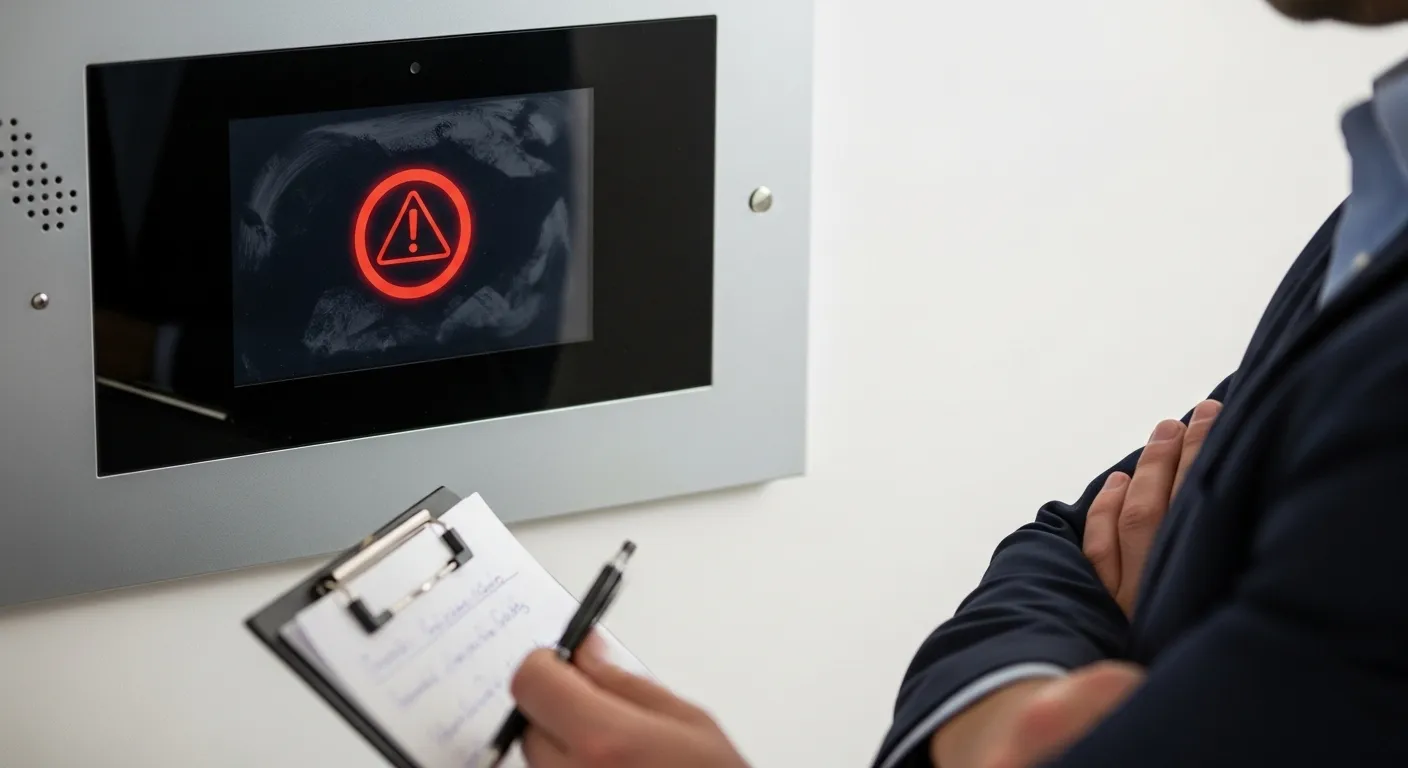
Like any smart technology, ButterflyMX devices may occasionally display error codes when something isn’t working properly. While these alerts can be frustrating, most are easy to understand and resolve without needing a technician.
This guide will help property managers and building staff decode the most common ButterflyMX error messages — and apply quick fixes to get the system back online.
1. Error Code 101 – Network Connection Failed
What it Means:
The device cannot connect to the internet. This usually happens due to weak Wi-Fi signals, disconnected Ethernet cables, or router issues.
Quick Fixes:
- Confirm the Ethernet cable is firmly connected (for PoE setups).
- Restart the router or switch.
- If using Wi-Fi, test signal strength at the device’s location.
- Assign a static IP address to avoid frequent drops.
2. Error Code 201 – Device Not Registered
What it Means:
The intercom or door controller hasn’t been properly added to the ButterflyMX cloud dashboard.
Quick Fixes:
- Log in to the ButterflyMX admin dashboard.
- Go to Devices → Add New Device.
- Enter the serial number (found on the back of the unit).
- Reboot the device after registration.
3. Error Code 305 – Power Supply Issue
What it Means:
The device isn’t receiving sufficient or stable power. This can occur if the PoE switch isn’t rated for the device load, or if the adapter is faulty.
Quick Fixes:
- Test voltage output with a multimeter.
- Ensure you’re using a PoE+ switch or injector for higher power needs.
- Replace damaged adapters or cables.
4. Error Code 402 – Door Unlock Command Failed
What it Means:
The intercom received the unlock command, but the door strike or maglock didn’t respond.
Quick Fixes:
- Check wiring between the device and the lock hardware.
- Verify the lock has power and is operational.
- Ensure the lock type (fail-safe or fail-secure) is configured correctly in the dashboard.
5. Error Code 503 – Camera or Microphone Not Responding
What it Means:
The video intercom’s camera or mic failed to initialize.
Quick Fixes:
- Restart the device.
- Confirm that no physical obstructions or dust are blocking the lens or mic.
- Check firmware updates in the dashboard and apply the latest patch.
General Troubleshooting Tips
- Always reboot the device as a first step — many minor glitches reset this way.
- Keep firmware updated through the dashboard.
- Label and document your device locations for faster troubleshooting.
- Contact ButterflyMX support if the same error repeats after multiple fixes.
Final Thoughts
Error codes don’t need to be a headache. By learning what each alert means, property managers can quickly address issues and keep tenants happy. For persistent problems, or if multiple devices are affected, professional servicing may be required.
If you’re located in New York or New Jersey, MetroCom Security offers certified ButterflyMX installation and support, including troubleshooting and repairs.